
Need to update or add a payment method? No problem — it’s quick and easy in the Payment Center. Follow the steps below to manage your payment details in just a few clicks.
Navigate to the Payment Center:
To access the Payment Center from the Home page, click Payment Center, on the left-hand bar.
Add a Payment Method
To add anew payment method to your payment center, follow the steps below:
- Click Payment Methods at the top of the page.
- Click Add Payment Method.
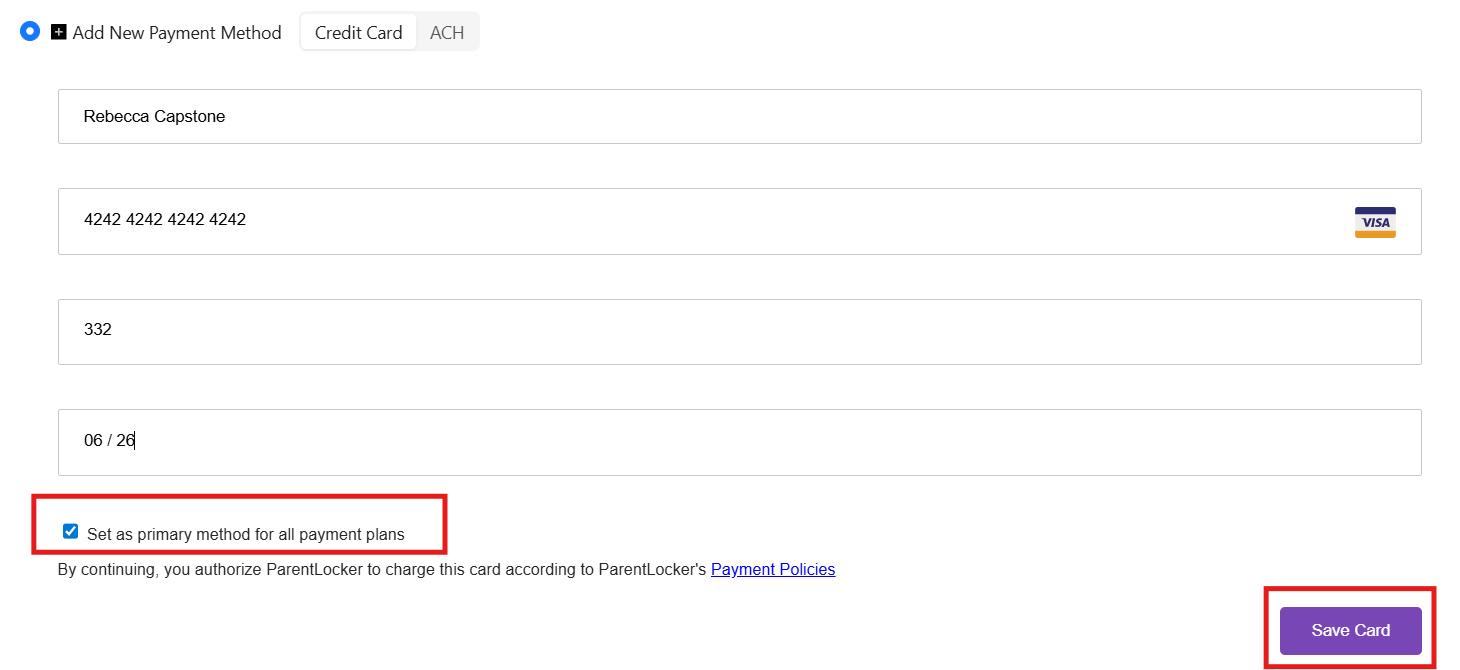
- Fill in your payment details, and select Save Card.
Notes:
- If you'd like all future payments to pull from this new payment method, you can check off the Set as primary method for all plans box at the bottom of the page.
- To update an existing method, add the updated information as a new payment method and delete the original one.
Assign a Specific Payment Method to an Invoice
Want to use a specific payment method for just one or a few invoices? Just follow the steps below.
-
Navigate to Your Invoices:
From the Payment Center, click on Invoices at the top of your page. Here, you’ll see a list of your active invoices. -
Select View Schedule:
At the bottom of the relevant invoice, click on the View Schedule. - Select Change next to your payment method:
-
Add or Update Your Payment Method for the Invoice:
- To add a new payment method, select Add New Payment Method and follow the prompts to input your payment details.
- To update an existing method, add the updated information as a new payment method and delete the original one.
Note:
- If you'd like all future payments to pull from this new payment method, and not just this specific invoice, you can check off the Set as primary method for all plans box at the bottom of the page.
-
Save Your Changes:
Once you’ve entered the information, review it carefully to ensure accuracy. Click Save to finalize your updates.
You’ll receive a confirmation message once the changes have been successfully applied. If you encounter any issues during this process please contact support for assistance.
We're here to help! If you have any questions, feel free to reach out to us at support@parentlocker.com.